 Pixi’VN
Connect the UI components with the game variables
Explains how to connect UI components to the game's persistent storage using TanStack Query, with example hooks (useQueryText1, useQueryText2), cache invalidation on step/label/save-load events, and a UI input example.
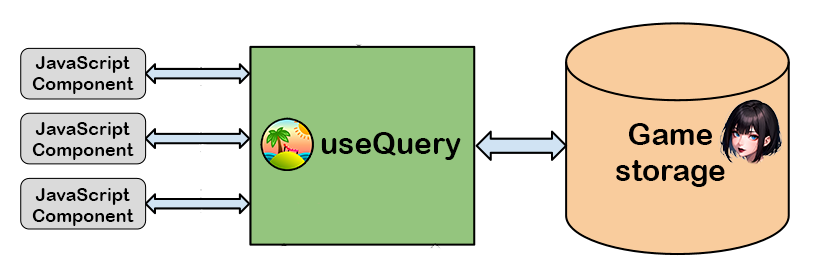
The best way to connect the UI with the game variables is to use the TanStack Query library.
What is TanStack Query? TanStack Query is a library that allows you to manage the state of your application in a simple and efficient way. It is based on the concept of queries, mutations and subscriptions. This library is very useful and is compatible with React, Vue, Angular, Svelte, etc.
You can learn more about TanStack Query on the TanStack website.
Here is an example:
In our example we have two variables, text1 and text2, stored in the game storage. These variables are updated either by a UI input or by a label or during a step.
Because storage variables can only be changed during a next step / go back, when you run a label, or when loading a save (outside the interface), we'll create useQueryText1 and useQueryText2 hooks and invalidate them after each of those events.
import { useQuery } from "@tanstack/react-query";
import { getLastSaveFromIndexDB } from "../utilities/save-utility";

// parent key used to invalidate all related queries
export const INTERFACE_DATA_USE_QUERY_KEY = "interface_data_use_query_key";

const TEXT1_USE_QUERY_KEY = "text1_save_use_query_key";
export function useQueryText1() {
    return useQuery({
        queryKey: [INTERFACE_DATA_USE_QUERY_KEY, TEXT1_USE_QUERY_KEY],
        queryFn: async () => {
            return storage.get<string>("text1") || "";
        },
    });
}

const TEXT2_USE_QUERY_KEY = "text2_save_use_query_key";
export function useQueryText2() {
    return useQuery({
        queryKey: [INTERFACE_DATA_USE_QUERY_KEY, TEXT2_USE_QUERY_KEY],
        queryFn: async () => {
            return storage.get("text2") || "";
        },
    });
}
To invalidate queries, use the queryClient.invalidateQueries function.
In this example, to update all queries that depend on the INTERFACE_DATA_USE_QUERY_KEY, use:
const queryClient = useQueryClient()
queryClient.invalidateQueries({ queryKey: [INTERFACE_DATA_USE_QUERY_KEY] })
To update only the text1 or text2 query, use:
const queryClient = useQueryClient()
queryClient.invalidateQueries({ queryKey: [INTERFACE_DATA_USE_QUERY_KEY, TEXT1_USE_QUERY_KEY] })
queryClient.invalidateQueries({ queryKey: [INTERFACE_DATA_USE_QUERY_KEY, TEXT2_USE_QUERY_KEY] })
const queryClient = useQueryClient()
narration.continue({})
.then((result) => {
queryClient.invalidateQueries({ queryKey: [INTERFACE_DATA_USE_QUERY_KEY] })
});
stepHistory.back({})
.then((result) => {
queryClient.invalidateQueries({ queryKey: [INTERFACE_DATA_USE_QUERY_KEY] })
});
Game.restoreGameState(jsonString, navigate)
.then(() => {
queryClient.invalidateQueries({ queryKey: [INTERFACE_DATA_USE_QUERY_KEY] })
})
// only if you are not in a label step
narration.call("myLabel", {})
.then((result) => {
queryClient.invalidateQueries({ queryKey: [INTERFACE_DATA_USE_QUERY_KEY] })
});In the UI, call the useQueryText1 and useQueryText2 hooks to access the stored text1 and text2 values.
export function MyComponent() {
    const { data: text1 = "" } = useQueryText1()
    const { data: text2 = "" } = useQueryText2()
    const queryClient = useQueryClient()

    return (
        <>
            <Input
                sx={{
                    pointerEvents: "auto",
                }}
                value={text1}
                onChange={(e) => {
                    storage.set("text1", e.target.value);
                    queryClient.invalidateQueries({ queryKey: [INTERFACE_DATA_USE_QUERY_KEY, TEXT1_USE_QUEY_KEY] })
                }}
            />
            <Input
                sx={{
                    pointerEvents: "auto",
                }}
                value={text2}
                onChange={(e) => {
                    storage.set("text2", e.target.value);
                    queryClient.invalidateQueries({ queryKey: [INTERFACE_DATA_USE_QUERY_KEY, TEXT2_USE_QUEY_KEY] })
                }}
            />
        </>
    );
}